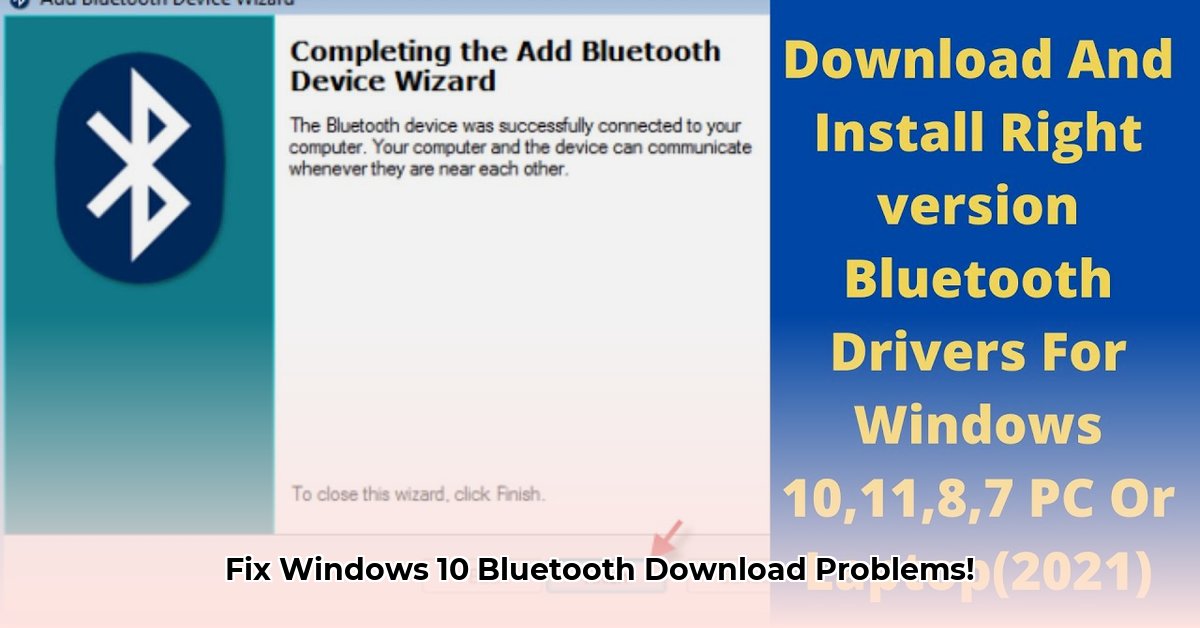
Is your HP laptop's Bluetooth malfunctioning? This comprehensive guide provides step-by-step instructions to troubleshoot and resolve common Bluetooth download and connectivity problems on Windows 10. We'll cover everything from basic checks to advanced driver solutions.
Troubleshooting Your HP Bluetooth Connection on Windows 10
Experiencing Bluetooth connectivity issues on your HP Windows 10 device? This guide will help you diagnose and resolve the problem. Let's start with some basic checks before moving to more advanced troubleshooting.
1. Verify Bluetooth is Enabled
The simplest solution is often the correct one. Let's ensure Bluetooth is activated:
- Click the Windows Start button.
- Select the gear icon to open the Settings menu.
- Click on "Devices."
- Choose "Bluetooth & other devices."
- Confirm that the Bluetooth switch is toggled to the "On" position (it should appear blue). If it's already on, try toggling it off, then back on. This often resolves minor software glitches.
2. Update Your Bluetooth Driver: The Software Solution
Outdated or corrupted Bluetooth drivers are a frequent cause of connectivity problems. Drivers act as the communication link between your computer and your Bluetooth hardware. If these instructions are faulty or absent, problems arise. Follow these steps to update your drivers:
- Right-click the Windows Start button.
- Select "Device Manager."
- Expand the "Bluetooth" section.
- Right-click your Bluetooth adapter (e.g., "Intel(R) Wireless Bluetooth(R)").
- Select "Update driver."
- Choose "Search automatically for drivers."
Windows will search for and install the latest driver. If unsuccessful, try a manual update:
- Go to the HP support website (https://support.hp.com/).
- Enter your HP laptop's model number (usually found on a sticker on the bottom).
- Navigate to the "Drivers and Software" section.
- Download the latest Bluetooth driver for your HP model and Windows 10.
- After downloading, double-click the installer and follow the on-screen instructions. Remember to restart your computer afterward.
3. Restart Your Computer and Run the Troubleshooter
A simple restart can often clear up temporary software problems. If the issue persists, Windows' built-in troubleshooter can assist:
- Open Windows Settings.
- Select "Update & Security."
- Click on "Troubleshoot."
- Run the "Bluetooth" troubleshooter.
4. Consider Hardware Issues: When Software Solutions Fail
If software solutions prove ineffective, a hardware problem might exist. Examine your Bluetooth adapter for physical damage or loose connections. If issues persist despite thorough software troubleshooting, contact HP support for further assistance. They can provide advanced diagnostics and arrange repairs if necessary.
Addressing Specific Bluetooth Problems
Here's a summary of common problems and their solutions:
| Problem | Solution |
|---|---|
| Bluetooth completely off | Check and enable Bluetooth in Windows settings; restart your computer. |
| Device won't connect | Check device's Bluetooth settings; try pairing again; update Bluetooth drivers. |
| Driver installation fails | Download the driver from HP's website; restart your PC. |
| Download is very slow | Check your internet connection speed; try downloading at a different time. |
| Bluetooth keeps disconnecting | Try moving away from potential interference sources (e.g., microwaves). |
Remember, patience is key when troubleshooting technical problems. If you continue to encounter difficulties after trying these steps, contacting HP support is recommended. They are equipped to handle more complex issues.
⭐⭐⭐⭐☆ (4.8)
Download via Link 1
Download via Link 2
Last updated: Sunday, April 27, 2025